Matrix
Big tech controls your conversations. Discord, WhatsApp, Telegram, they own your messages, your contacts, your metadata. Matrix gives that control back to you.
What is Matrix?
Think of Matrix as a chat system like Discord or Slack, but one that's not owned by any single company. It's fully open source, end-to-end encrypted, and gives you control over your conversations.
Technically, Matrix is a protocol and specification for decentralized communication. Servers that implement this protocol are called homeservers.
Through federation, homeservers work together: account1:server1 can talk to account2:server2 in a Room hosted on server3. Rooms are like Discord text channels, and they can be grouped into Spaces (like a Discord server), but unlike Discord, Rooms can exist independently of a Space.
Since Matrix is just a protocol, there are many different clients (the apps you use) to choose from, each with their own style and strengths.
Why Use Matrix?
- Decentralized: No central authority. Pick a server or host your own.
- End-to-End Encrypted: Matrix supports E2E encryption to keep messages private, and it's toggleable; you can enable or disable it per room as needed.
- Open Source: The code is public. No backdoors, no secrets.
- Interoperable: Bridges exist to connect with IRC, Discord, Slack, and more.
- You Own Your Data: Export, move, or delete your history anytime.
How to Get Started
Getting on Matrix is simple:
1. Pick a Client
There are several Matrix clients to choose from, each with different strengths. Here are the main ones, in my recommended order:
- Cinny (my personal preference) Supports E2EE, voice chats, Spaces, and Rooms. Available on Desktop (macOS, Linux, Windows) and Web (chat.lynnyc.net).
- Element The more corporate option, made by the Matrix team. Supports E2EE, voice chats, Spaces, and Rooms. Available on Desktop (macOS, Linux, Windows) and Mobile (iOS, Android). Get it at element.io.
- Commet Very similar to Discord in look and feel. Supports E2EE, voice chats, Spaces, and Rooms. Available on Desktop (macOS, Linux, Windows) and Mobile (Android, iOS). Note: it can be a bit more buggy.
- FluffyChat Material You themed (Android-like), more of a traditional chat app. Supports E2EE, Spaces, and Rooms, but does not have voice chat. Available on Desktop and Mobile.
- iamb For terminal addicts. A Matrix client that runs in your terminal.
My recommendation order: Cinny → Element → Commet → FluffyChat → the rest.
2. Choose a Server (Homeserver)
A homeserver is where your Matrix account lives. It stores your message history, manages your identity, and connects you to the rest of the Matrix network.
When picking a homeserver, you have several options:
- Big public homeservers:
matrix.orgis the default, run by the Matrix Foundation. It's the largest and most well-known, but can be busy. - Smaller community servers: Many communities, projects, and individuals run their own homeservers, like
mat.lynnyc.net(my server!). These are often more tight-knit and privacy-focused. - Self-host: You can run your own homeserver. I prefer tuwunnel; it supports basically the same feature set as Synapse but is significantly faster. Other options include Synapse (the most widely used) and Dendrite. Self-hosting gives you complete control over your data, who you federate with, and how your server is configured.
Unlike big tech platforms where a single company can ban you from the entire service, bans on Matrix are per-homeserver. Each server host sets their own rules and moderation policies; if one homeserver removes your account, you can still access the full Matrix network by registering on any other homeserver. Your access isn't controlled by a single central authority.
Thanks to federation, all these homeservers work together seamlessly. No matter which one you choose, you can message users on other homeservers, join rooms hosted anywhere, and participate in Spaces across the entire Matrix network.
3. Join Rooms
Matrix uses "rooms" instead of servers/channels. To join a room:
- Click the + button in Element
- Search for rooms by name or alias (like
#matrix:matrix.org) - Or get an invite link from someone
Step-by-Step: Getting Started with Cinny
Let's walk through creating an account and using Matrix with Cinny, my recommended client. We'll use my homeserver (mat.lynnyc.net), but these steps work for matrix.org or any other homeserver too.
1. Visit Cinny
Go to chat.lynnyc.net in your browser. You can also download the desktop app if you prefer.
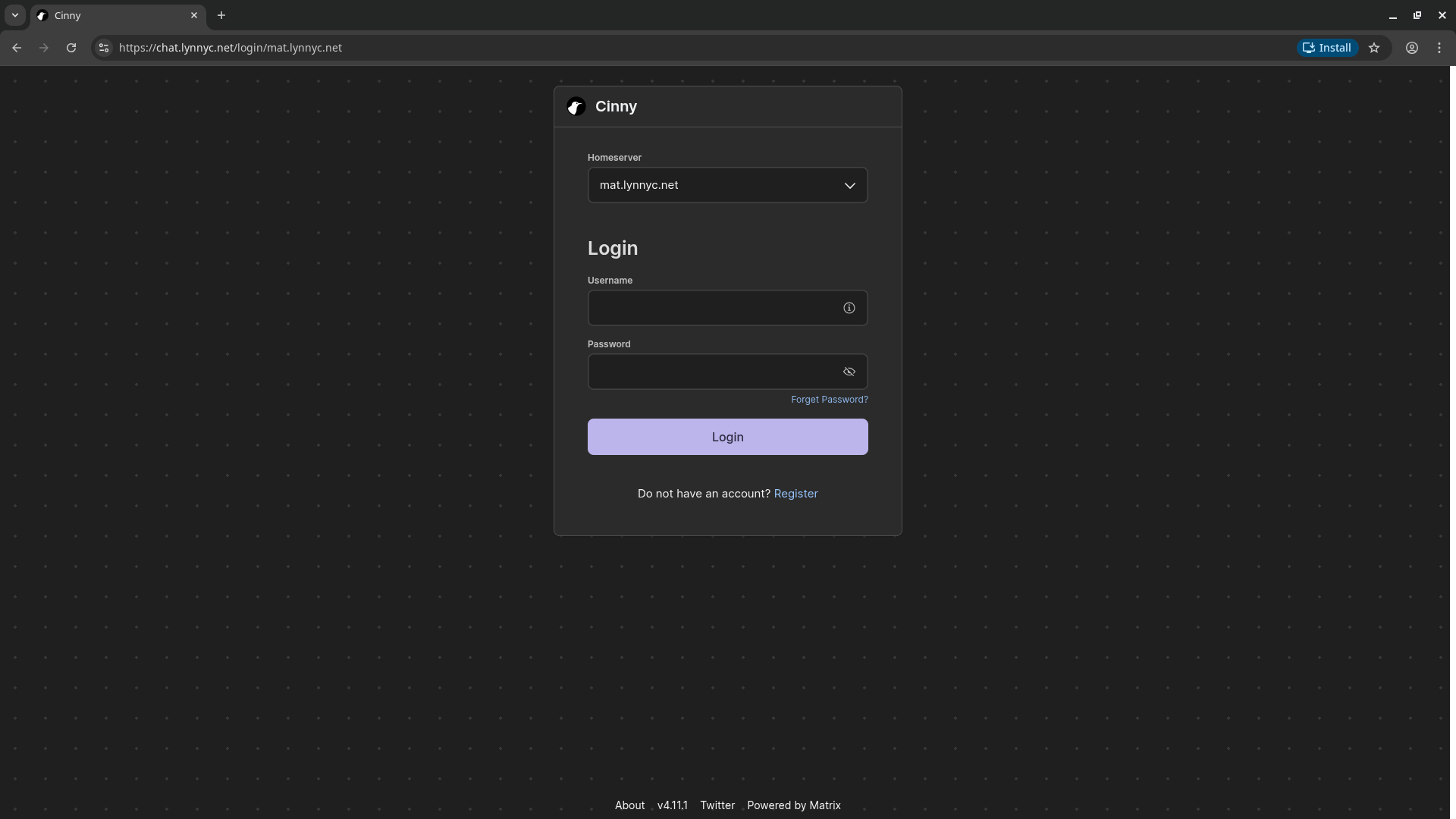
2. Create Your Account
Click "Register" or "Create Account". You'll need to:
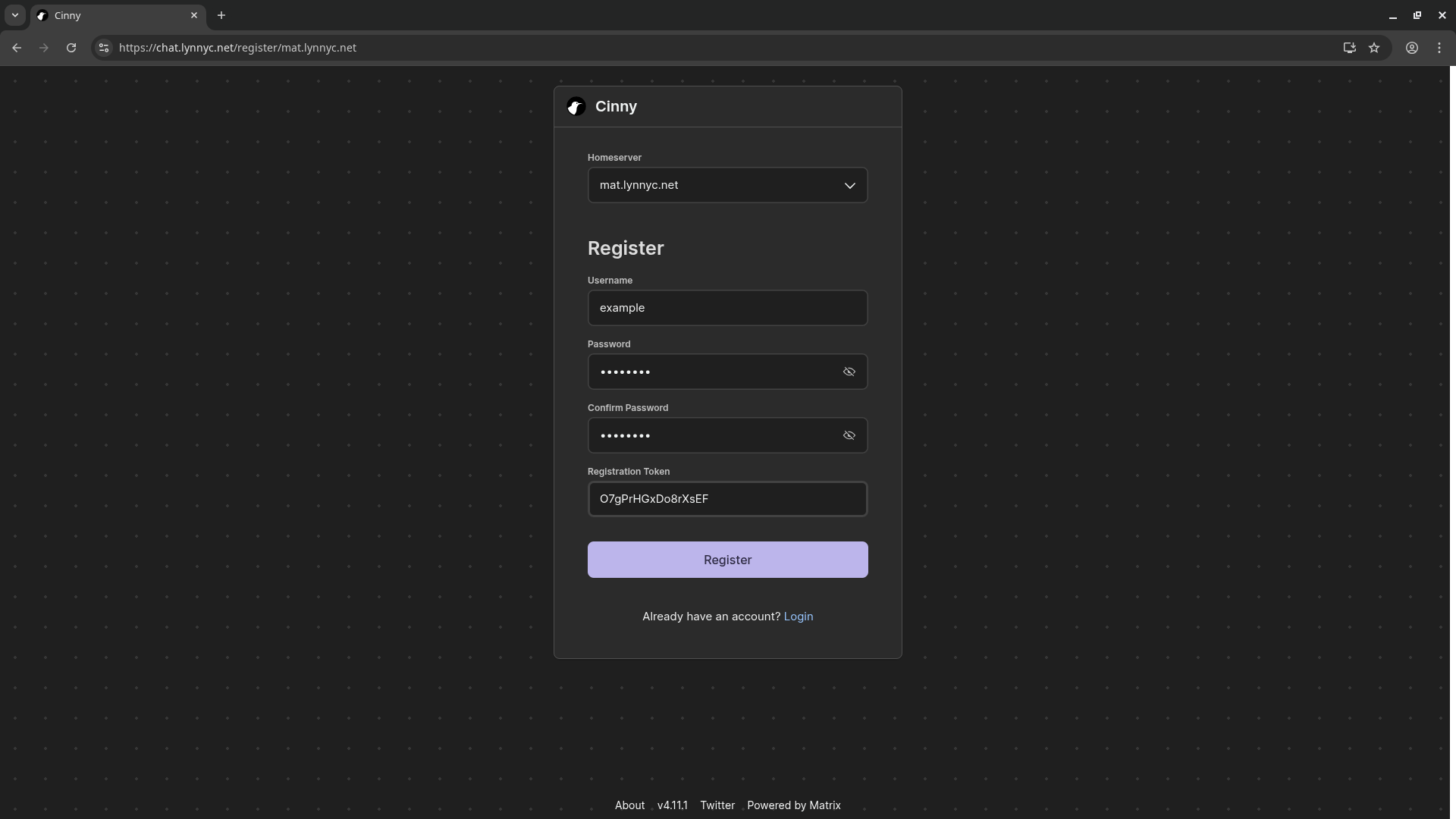
- Choose a username (this becomes part of your Matrix ID:
@username:mat.lynnyc.net) - Set a password
- Select the homeserver: enter
mat.lynnyc.net(ormatrix.orgif you prefer)
Note: mat.lynnyc.net requires a verification token to sign up. You can get one by asking me on Discord (@dotevaly) or by emailing me at eva@lynnyc.net. If you don't have a token yet, you can use matrix.org to get started, then move your account later.
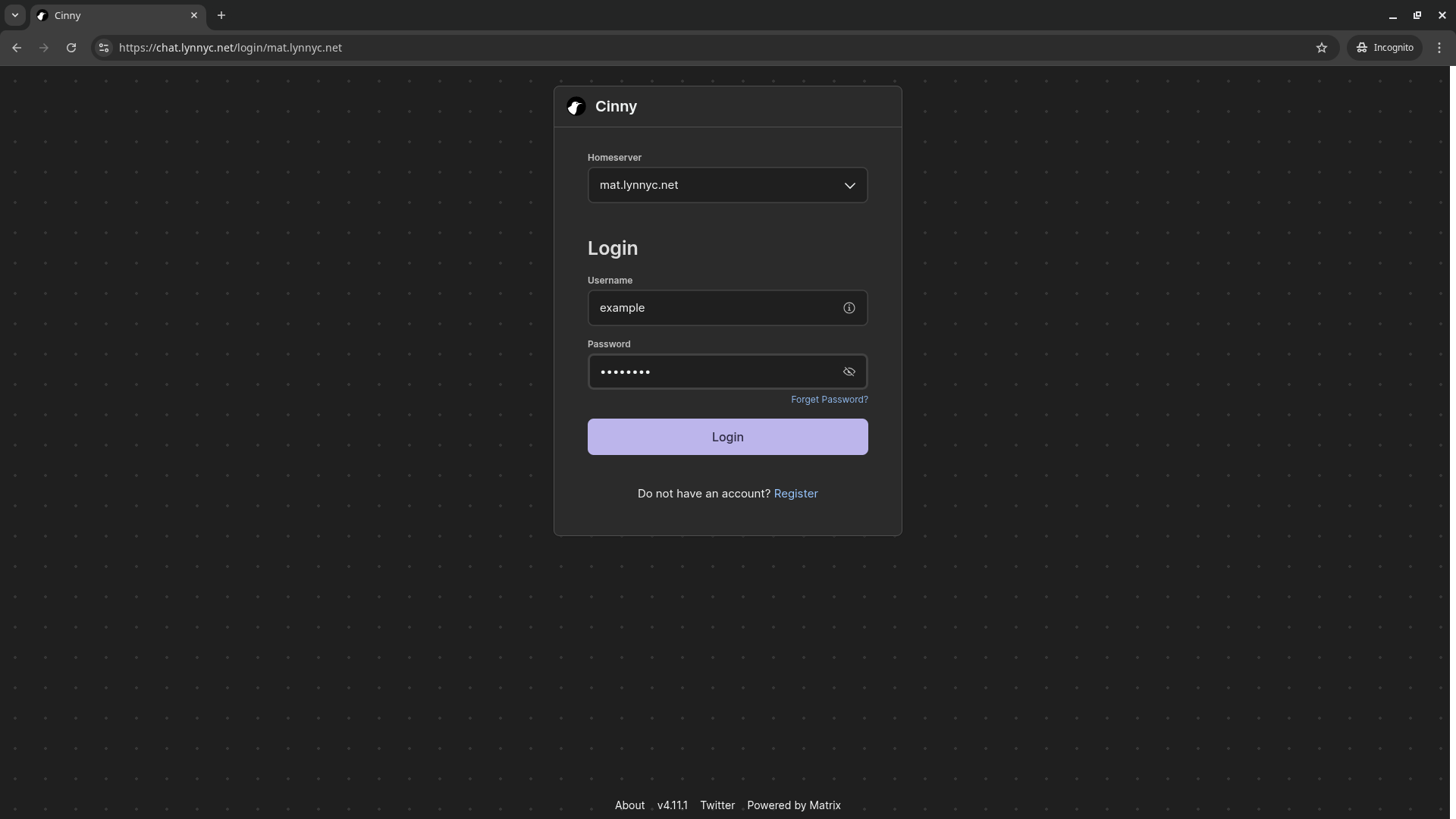
3. Log In
Once your account is created, log in with your username and password.
You'll see your empty room list; don't worry, we'll fix that next.
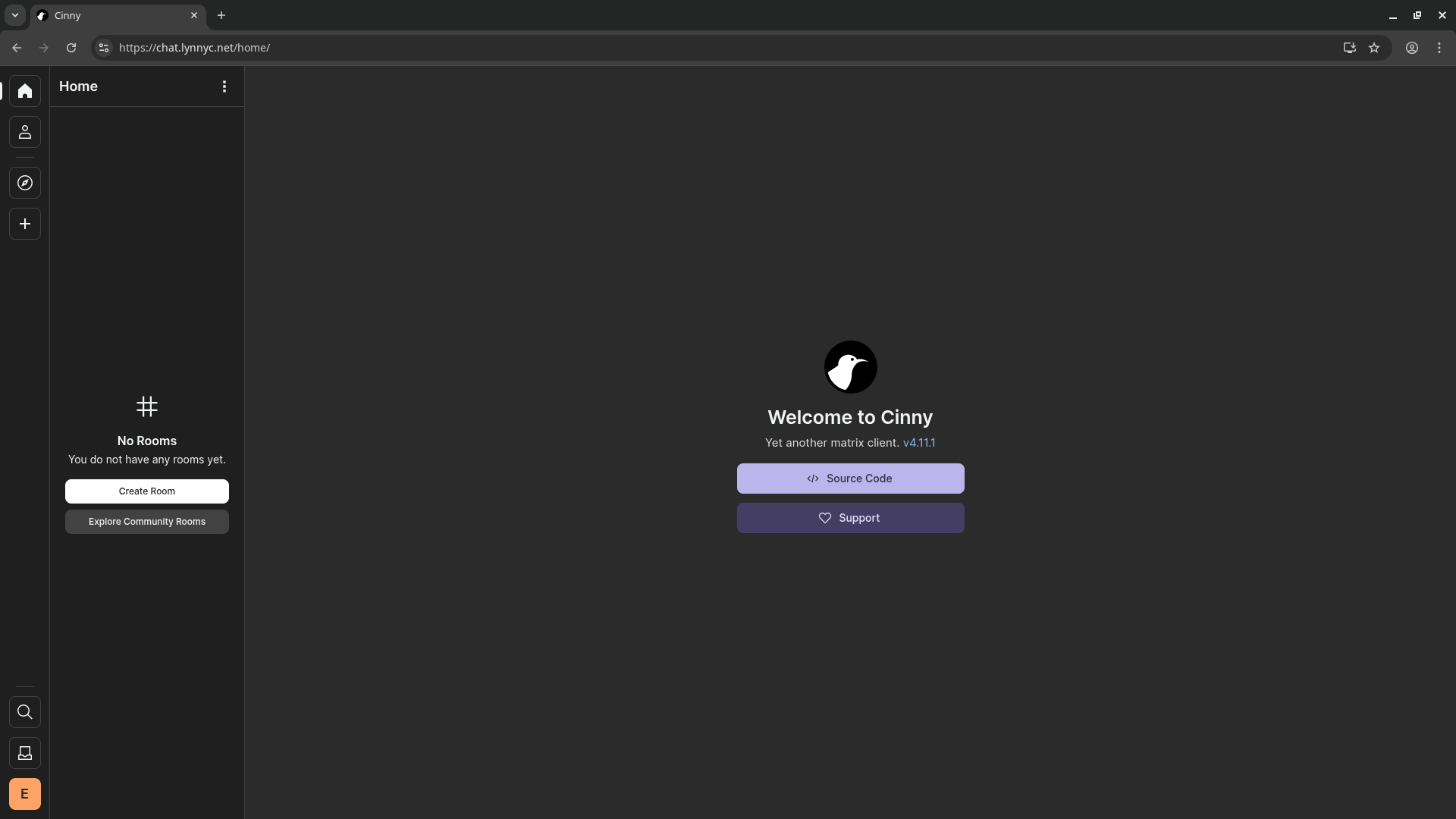
4. Join Rooms
After logging in:
- Click the + button or "Explore" to find rooms
- Search for public rooms by name
- You can join
#general:mat.lynnyc.netto say hi, or explore other rooms
5. Start Chatting
Click on a room to start chatting. You can send messages, share files, start voice calls (if supported by the room), and create new rooms to invite others.
Verifying Another Device
If you log into your Matrix account on another device (like your phone or a second computer), you'll want to verify that device to ensure your encrypted messages stay secure. Here's how to do it in Cinny:
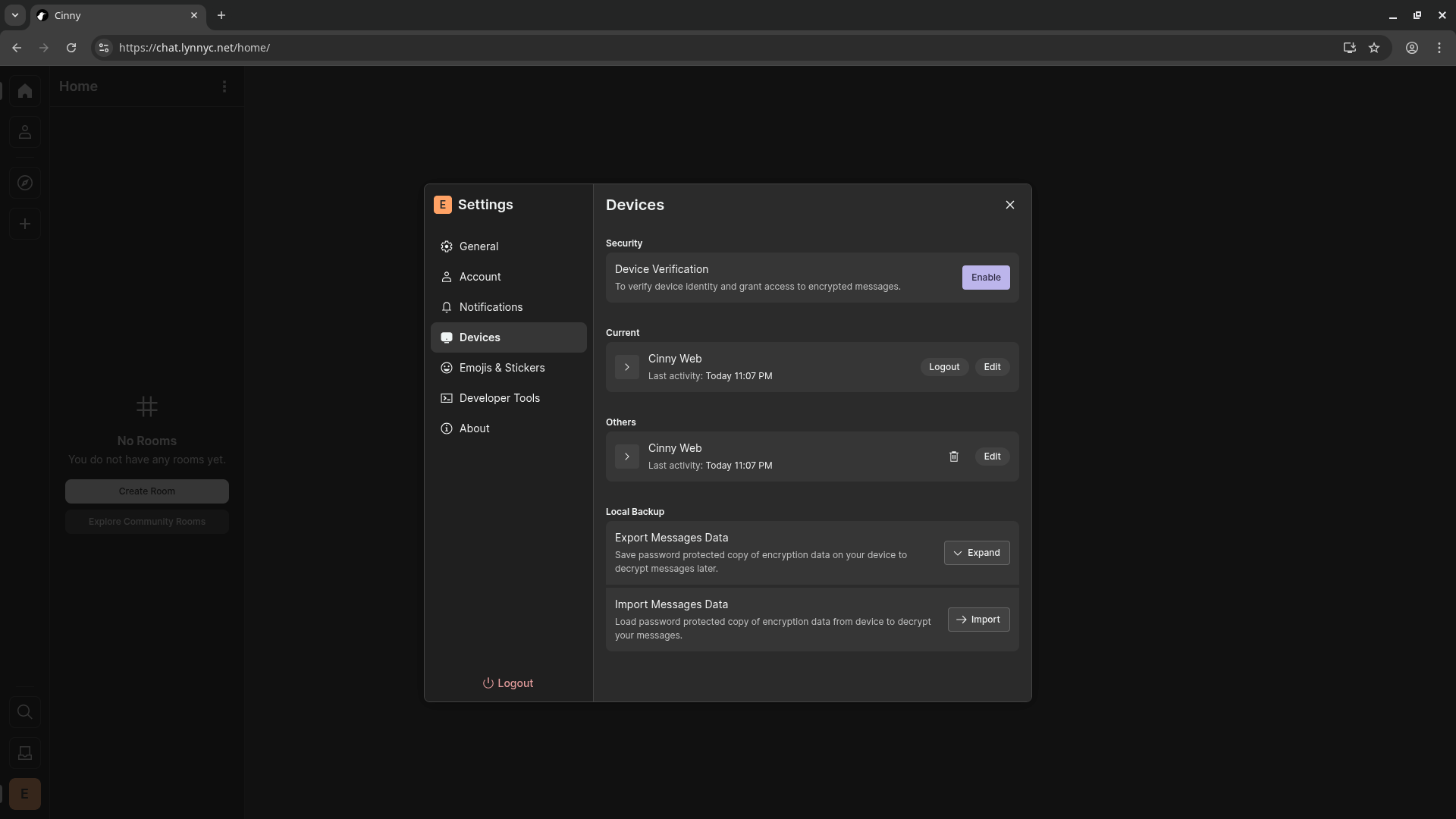
1. Enable Verification in Settings
Go to Settings and make sure verification is enabled:
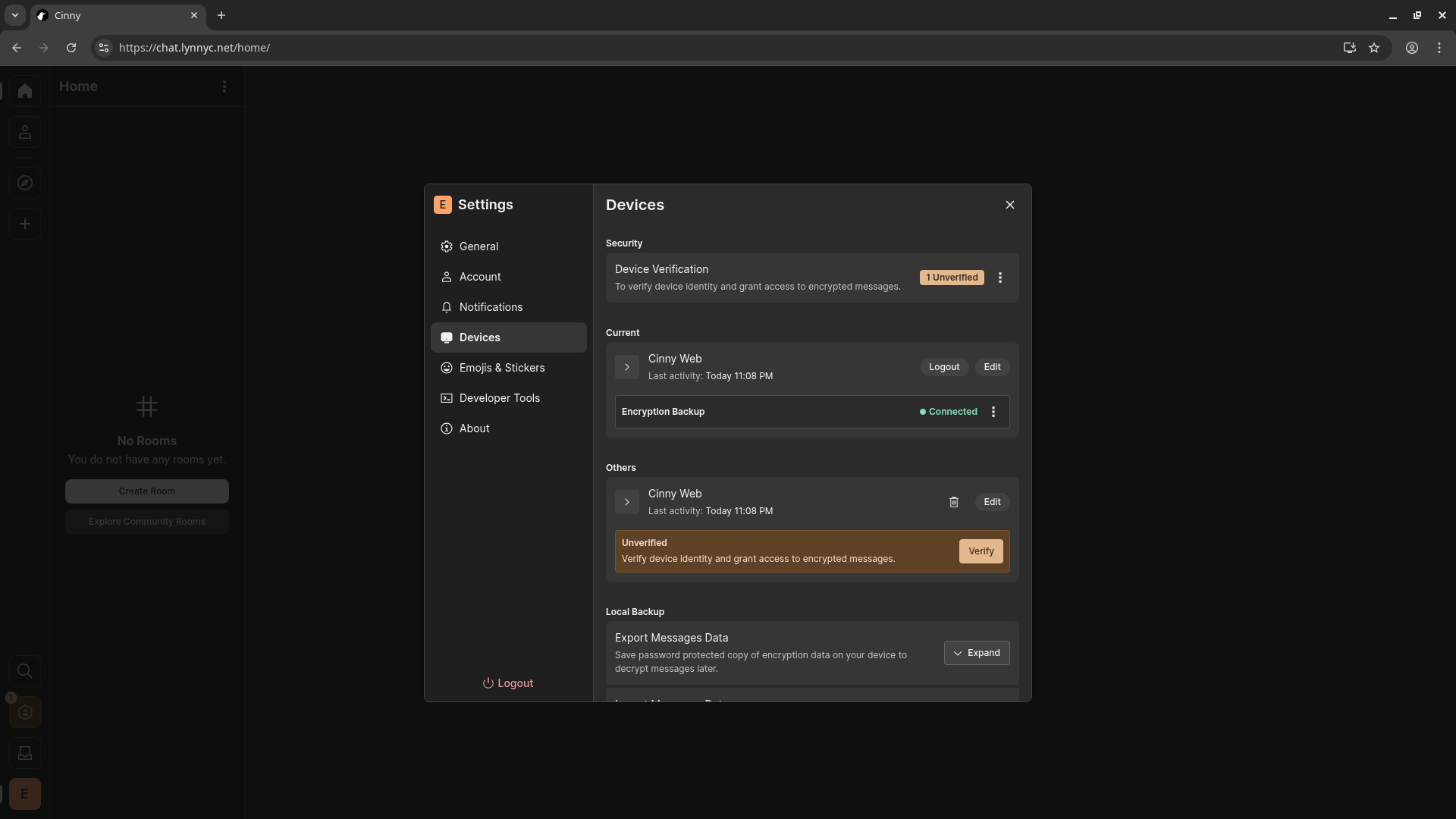
2. Check Verification Status
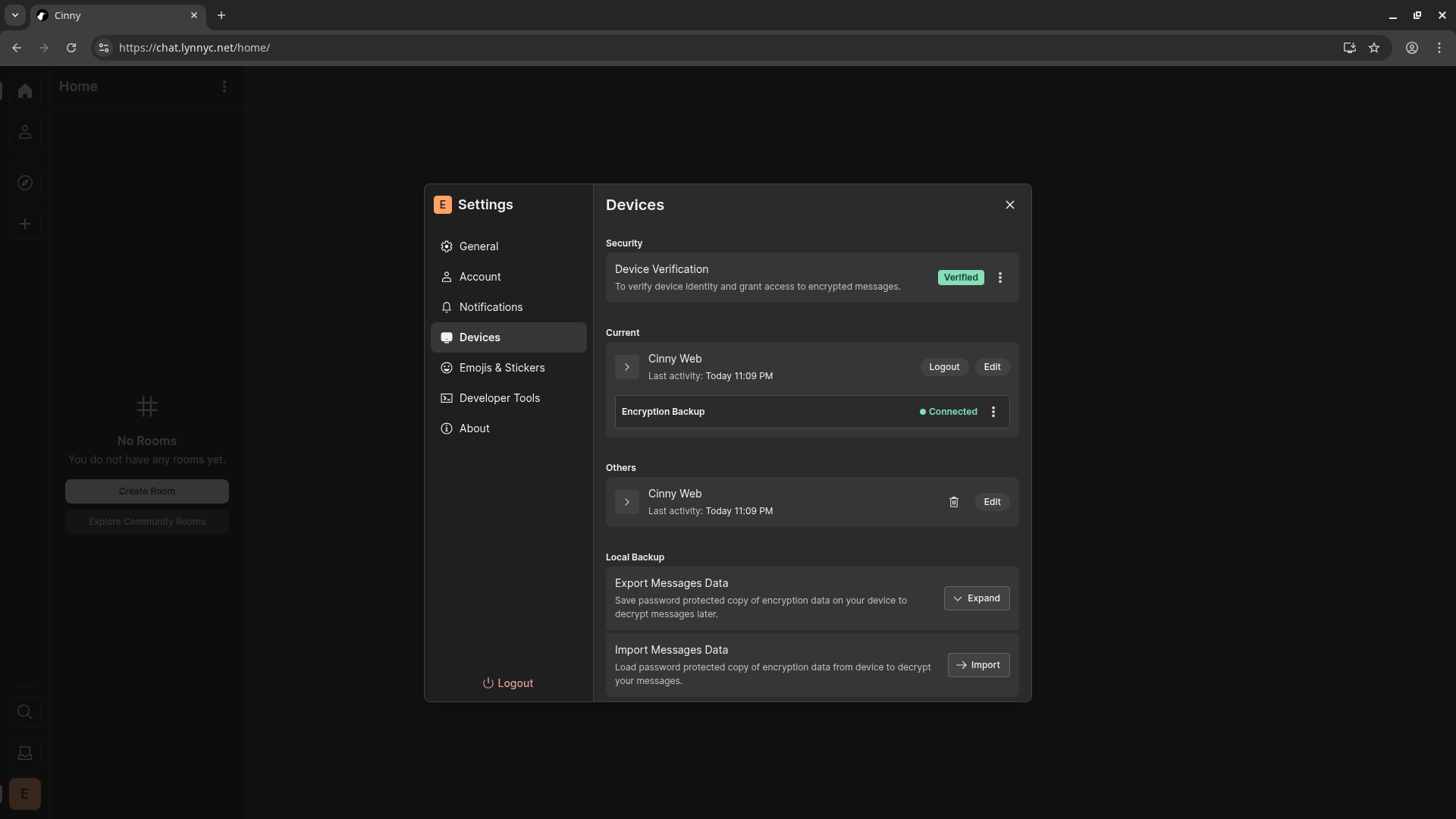
In Settings, you can see which devices are verified. Here's what it looks like with one unverified device:
And here's what it looks like when both devices are verified:
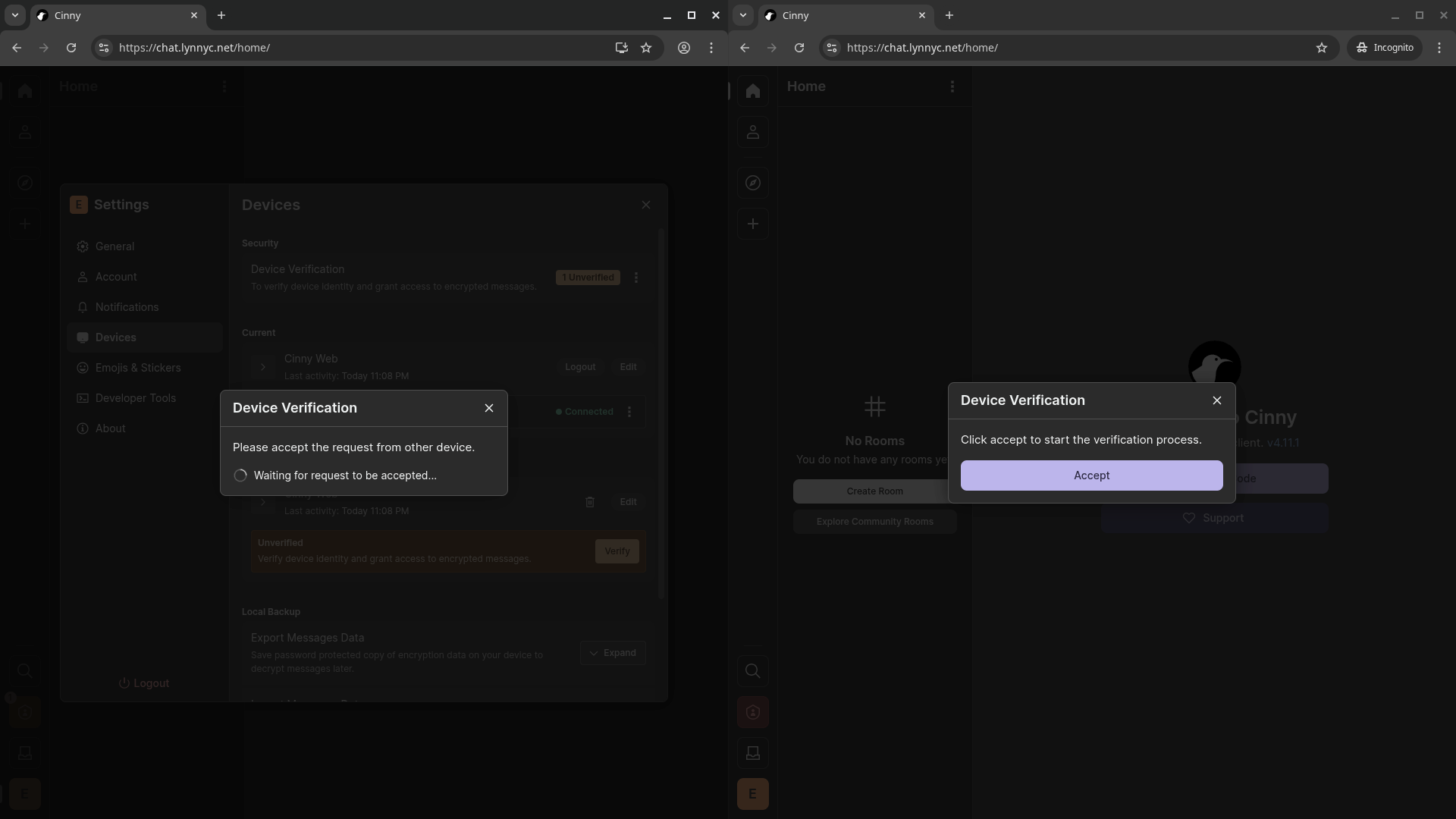
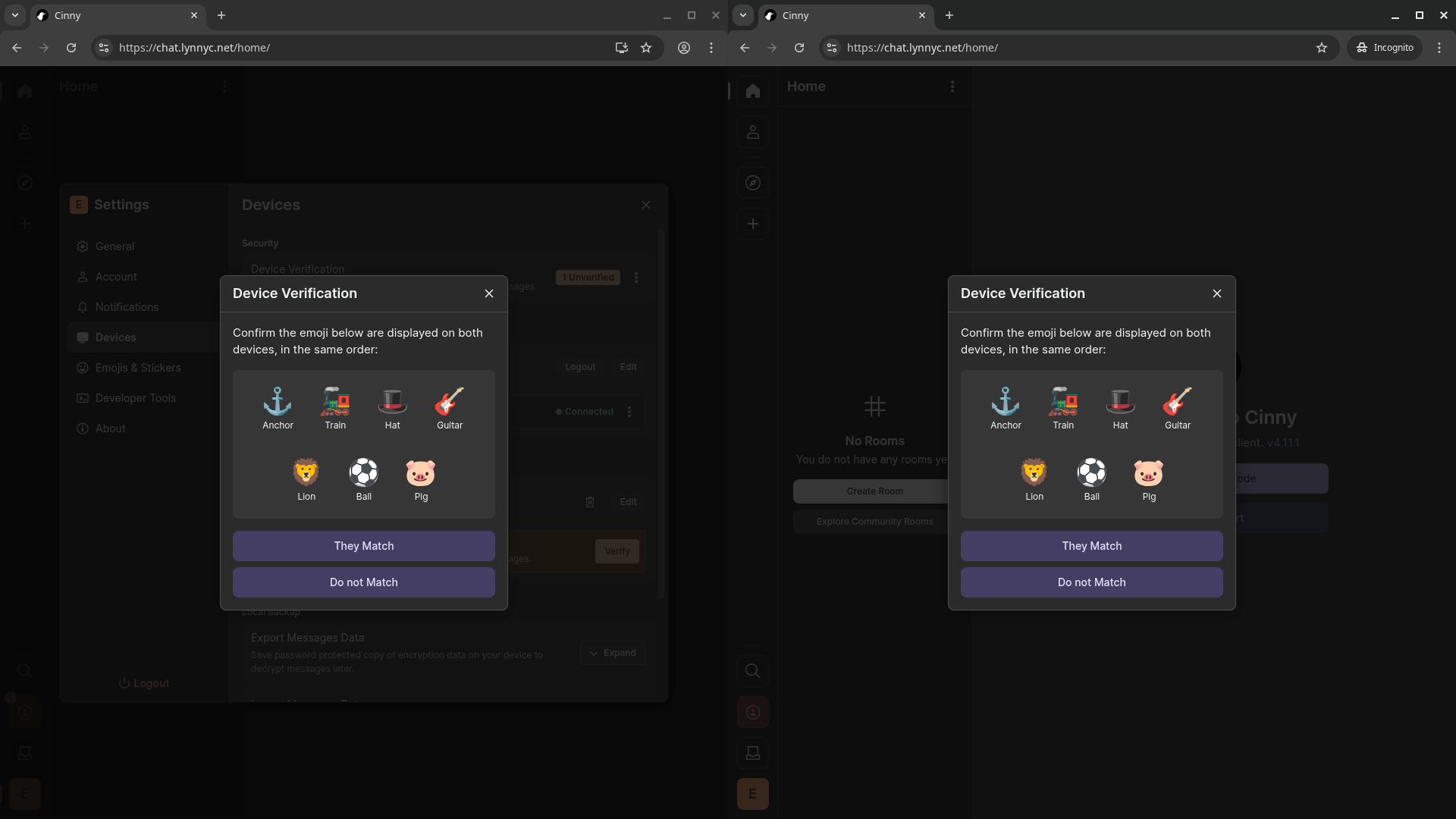
3. Complete the Verification Process
When you add a new device, Cinny will prompt you to verify. The process involves comparing codes or emoji on both devices:
Join The Lynnyc Matrix
I run a Matrix server at mat.lynnyc.net. You can:
- Sign up for an account (you'll need a verification token; ask me on Discord @dotevaly or email eva@lynnyc.net)
- Just add me:
@eva:mat.lynnyc.net - Join the community room:
#general:mat.lynnyc.net
Matrix is a great Discord alternative: same features, none of the surveillance.
Quick Tips
- Encryption: Most rooms are encrypted by default. Don't share your encryption keys with anyone.
- User IDs: Your ID looks like
@username:server.com. The server part matters for your identity. - Bridges: You can bridge Matrix rooms to Discord/IRC so people can join from either side.
- Verification: Verify the people you talk to (click their profile → Verify) to ensure encryption is working.